Connect PostgresGUI to Neon
Ghazi · July 30, 2026
Neon's Connect dialog provides the host, database, role, password, and security parameters for the selected branch. A direct hostname and a pooled hostname reach the same branch, but they do not provide the same session behavior.
Choose the branch, database, and role in Neon, then copy the generated values. Use the direct hostname for PostgresGUI, port 5432, and Verify Full SSL. Use Neon's -pooler hostname for application workloads that need transaction pooling.
Direct connection shape
postgresql://ROLE:PASSWORD@ep-EXAMPLE-123456.us-east-2.aws.neon.tech/DATABASE?sslmode=verify-fullUse the exact endpoint hostname, role, and database shown by Neon.
Pooled application connection shape
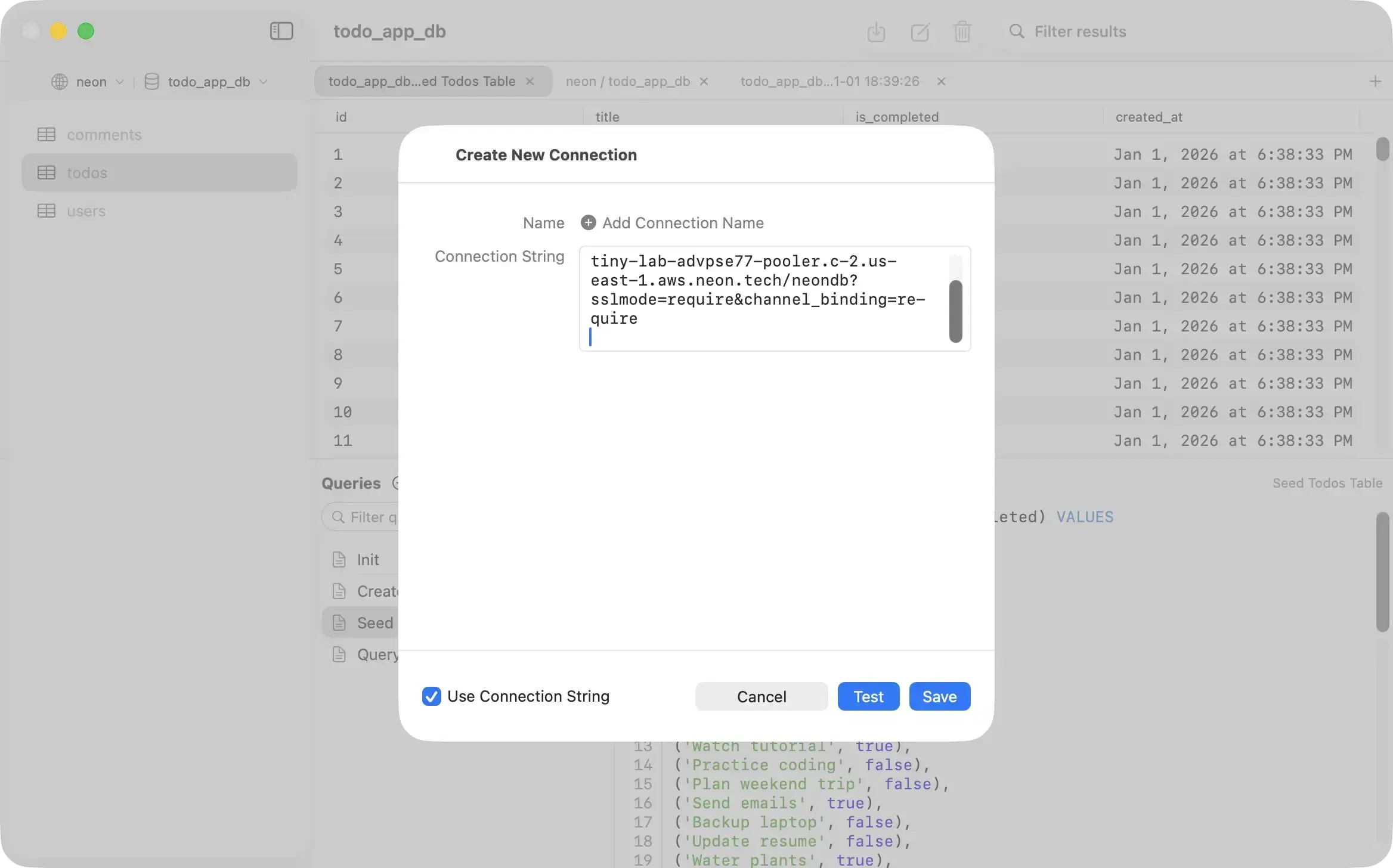
postgresql://ROLE:PASSWORD@ep-EXAMPLE-123456-pooler.us-east-2.aws.neon.tech/DATABASE?sslmode=require&channel_binding=requireNeon's pooled hostname contains -pooler. Keep the complete generated string for application drivers that support channel binding.
Copy the values from the correct branch
Open the Neon project, click Connect, and select the branch, database, and role you intend to inspect. Copying a connection from another branch can succeed while showing entirely different data.
For PostgresGUI, use the direct endpoint. The pooled endpoint uses PgBouncer in transaction mode and cannot preserve every session-level feature.
Enter the values in PostgresGUI
Paste the direct URI or enter its fields separately. PostgresGUI supports full certificate and hostname verification, but it does not currently enforce Neon's channel_binding URI parameter. Selecting Verify Full gives the desktop connection certificate and hostname verification. See the Neon connection-string reference for the compact URI breakdown.
- Host: the endpoint without -pooler
- Port: 5432
- Database: the selected Neon database, often neondb
- User: the selected Neon role
- SSL: Verify Full
Confirm the endpoint and TLS session
Run one query after connecting. Besides proving the credentials work, it makes the selected database, role, server address, and TLS state visible.
Connection check
select
  current_database() as database,
  current_user as role,
  inet_server_addr() as server_address,
  ssl
from pg_stat_ssl
where pid = pg_backend_pid();
The ssl value should be true.
Fix the common failures
Start with the generated URL again. Neon endpoint IDs, branch choices, and roles are precise, and a nearly correct hostname is still wrong.
- Connection starts slowly: the branch compute may be waking from an idle state.
- Password authentication failed: recopy the role and password from the selected branch.
- Wrong data appears: confirm the branch and database selected in the Connect dialog.
- Session command fails through the pooler: switch the desktop client or migration command to the direct endpoint.
Use different URLs for different jobs
A direct URL is a sensible choice for a desktop inspection session, migrations, and tools that need stable session state. A pooled URL is useful for applications that open many short connections.
Keep both out of source control. PostgresGUI stores saved credentials in the macOS Keychain. The Mac PostgreSQL client overview shows the rest of the connection and query workflow.