Connect PostgresGUI to Supabase
Ghazi · July 30, 2026
Supabase exposes several PostgreSQL endpoints. For a desktop client, the useful choice is normally the direct endpoint or the shared pooler in session mode. The transaction pooler on port 6543 is built for short application transactions.
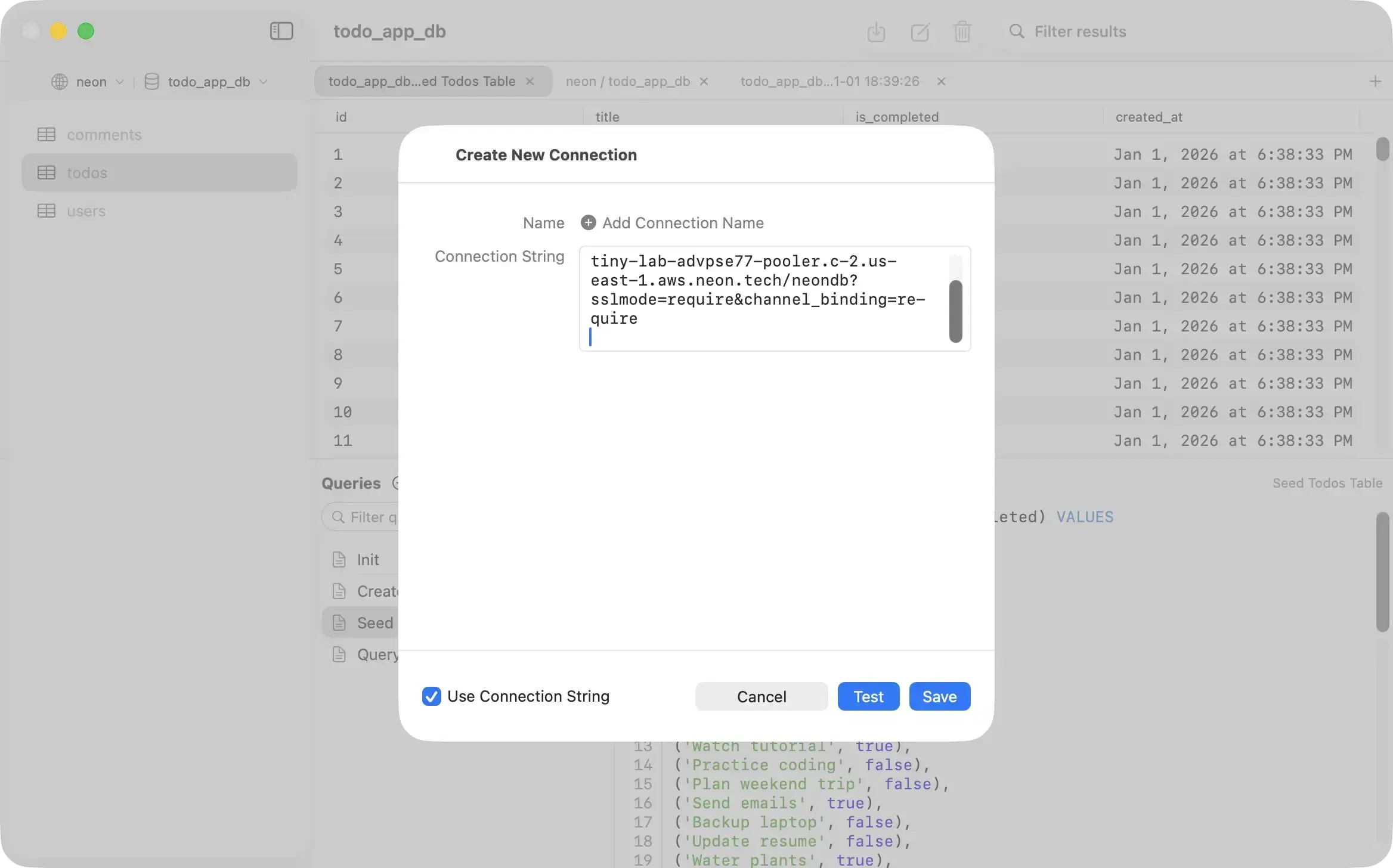
In Supabase, open your project and click Connect. Use the direct connection when your Mac has working IPv6. If it does not, copy the session-pooler values on port 5432. In PostgresGUI, select Verify Full for SSL and test the connection.
Direct connection shape
postgresql://postgres:PASSWORD@db.PROJECT_REF.supabase.co:5432/postgres?sslmode=verify-fullThe direct hostname is IPv6 unless the project has Supabase's IPv4 add-on.
Session-pooler shape for IPv4 networks
postgresql://postgres.PROJECT_REF:PASSWORD@aws-0-REGION.pooler.supabase.com:5432/postgres?sslmode=verify-fullCopy the actual region, project reference, and credentials from the Connect panel.
Choose the endpoint before opening the client
Start with the direct endpoint. It gives the desktop client a normal PostgreSQL session and avoids transaction-pooler restrictions.
If the direct host times out or DNS resolves only to an IPv6 address your network cannot reach, use the shared pooler's session-mode URL. It runs on port 5432 and is available over IPv4.
- Direct: db.PROJECT_REF.supabase.co on port 5432
- Shared pooler, session mode: REGION.pooler.supabase.com on port 5432
- Shared pooler, transaction mode: port 6543; keep this for serverless application traffic
Enter the values in PostgresGUI
Copy the provider values from Supabase rather than typing the project reference or region from memory. You can paste a URL or enter the fields individually. The Supabase connection-string reference shows both URI shapes in one place.
- Host: the direct or session-pooler hostname
- Port: 5432
- Database: postgres unless you created another database
- User: postgres for direct access, or the project-qualified user shown for the pooler
- SSL: Verify Full
Confirm the session
After the connection opens, run a small read-only query. It confirms the database and role and shows whether PostgreSQL sees an encrypted session.
Connection check
select
  current_database() as database,
  current_user as role,
  inet_server_addr() as server_address,
  ssl
from pg_stat_ssl
where pid = pg_backend_pid();
The ssl value should be true.
Fix the common failures
A timeout usually points to the endpoint or network. An authentication error points to the role, project reference, password, or URL encoding.
- Direct endpoint times out: switch to the session pooler if the network is IPv4-only.
- Password authentication failed: copy the current database password and exact pooler username.
- URL cannot be parsed: percent-encode reserved characters in a manually assembled password.
- Project is paused: open the Supabase dashboard and allow the database to become available.
Keep application and desktop connections separate
Do not commit the copied URL. Store application credentials in a secret manager and keep the desktop connection in the macOS Keychain. For a focused look at the client itself, see the PostgreSQL GUI for Mac page.
Use a restricted database role for routine browsing. The service-role API key and the PostgreSQL password are different secrets; a database client needs the PostgreSQL connection values.